Render HUGE Lists In React - React Window Tutorial
This is a tutorial on react-window, at the end of the article there is a link to a Github repo with code examples.
Rendering lists in React is simple, I would say trivial. You map through an array of items and output elements.
Like here:
<ul>
  {items.map(item => (
    <li key={item.id}>{item.text}</li>
  ))}
</ul>
Oh, don't forget to specify the key. Read more about it in article about lists and keys in React.
But what if you need to render a couple of thousand items at once?
The Problem
I'm going to use create-react-app bootstrapped application in all my examples in this tutorial.
First, let's try to render 3000000 items as usual and see what happens.
export default () => (
  <ul>
    {[...Array(3000000).keys()].map(item => (
      <li key={item}>Row {item}</li>
    ))}
  </ul>
)
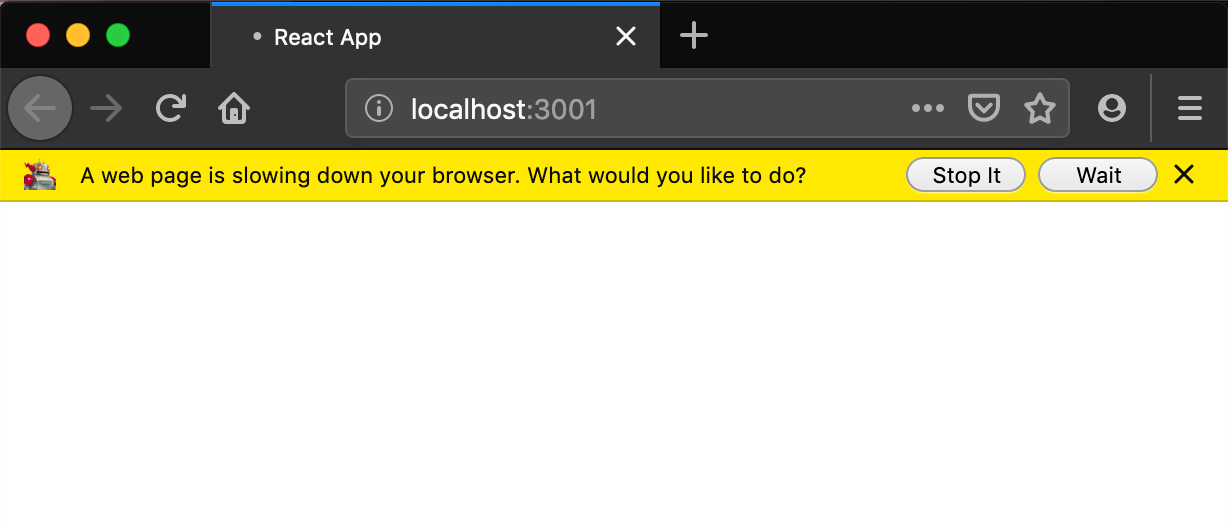
The browser hangs and prompts us to stop the script.
How To Solve It?
We need to optimize rendering. The technique to do is with lists is called windowing.
You show only the content that is currently inside of the view boundaries of the user.
In react here is a package react-window
React Window Simple Example
Here is a simple tutorial on how to use react-window.
We'll use the code from the docs as an example.
- Create a new application using
create-react-app.
create-react-app react-window-example
- Install dependencies. We'll use
react-windowand alsoreact-virtualized-auto-sizerin our example.
yarn add react-window react-virtualized-auto-sizer
- Go to
App.js, and import needed packages.
import React from "react"
import { FixedSizeList as List } from "react-window"
import AutoSizer from "react-virtualized-auto-sizer"
-
Add these styles to
index.css:```css html { font-family: sans-serif; font-size: 12px; } body { margin: 0; } html, body, #root { height: 100%; overflow-x: hidden; } .List { border: 1px solid #d9dddd; } .ListItemEven, .ListItemOdd { display: flex; align-items: center; justify-content: center; } .ListItemEven { background-color: #f8f8f0; }Make sure you have it imported in `App.js`: ```jsx import 'index.css' -
Define the list component.
export default () => (
  <AutoSizer>
    {({ height, width }) => (
      <List
        className="List"
        height={height}
        itemCount={1000}
        itemSize={35}
        width={width}
      >
        {Row}
      </List>
    )}
  </AutoSizer>
)
Here we pass
heightandwidthfromAutoSizerto ourListcomponent. We do it soListtakes all the horizontal and vertical space available.We pass
itemSize- in our case, it's the height of our rows.
-
Define the
Rowcomponent:const Row = ({ index, style }) => ( <div className={index % 2 ? "ListItemOdd" : "ListItemEven"} style={style}> Row {index} </div> )
Here we display current index. Also, we apply even or odd class to the element.
-
Run your application:
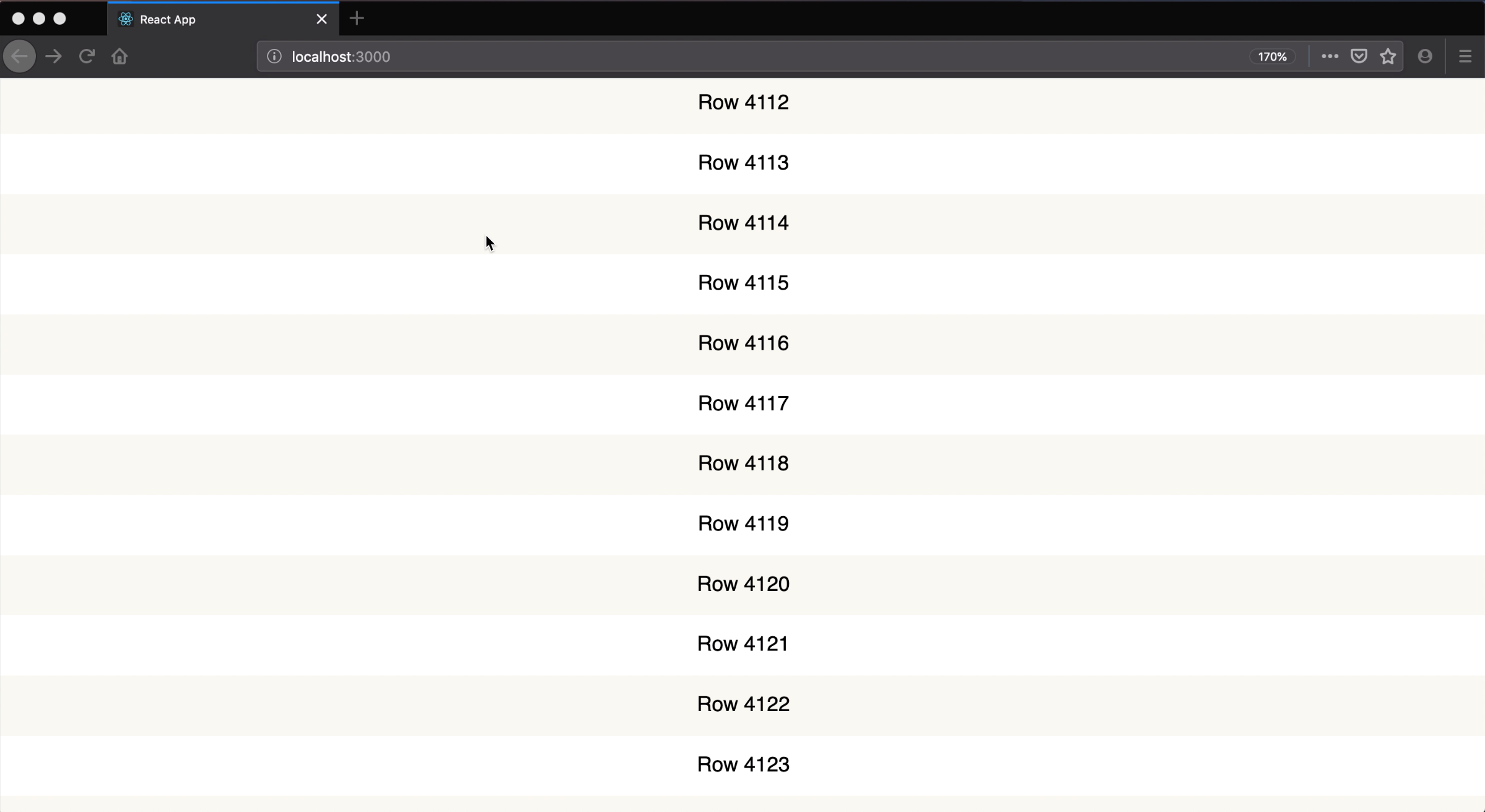
yarn startYou should see the list with 1000 items in it.
It was an example with generated items. Not it's time to learn how to add data to it.
React Window Example With Data
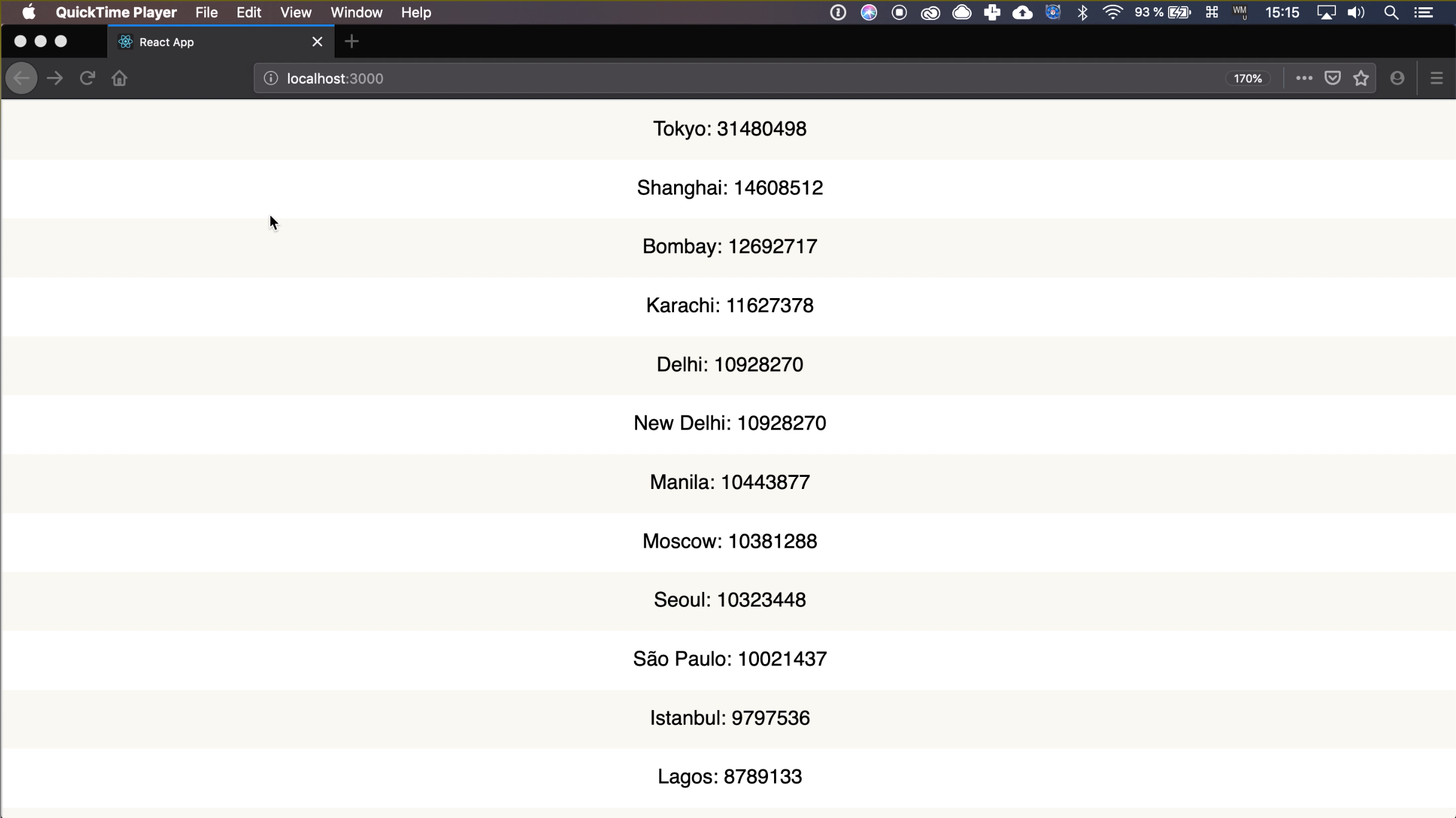
In this example, we will display a list of cities with their population. We will use the code from the previous example as our base.
-
Install
react-window-infinite-loaderyarn add react-window-infinite-loader -
Import
InfiniteLoaderimport InfiniteLoader from "react-window-infinite-loader" -
Wrap your
ListintoInfinineLoaderexport default () => ( <AutoSizer> {({ height, width }) => ( <InfiniteLoader isItemLoaded={isItemLoaded} loadMoreItems={loadMoreItems} itemCount={1000} > {({ onItemsRendered, ref }) => ( <List className="List" height={height} itemCount={1000} itemSize={35} width={width} ref={ref} onItemsRendered={onItemsRendered} > {Row} </List> )} </InfiniteLoader> )} </AutoSizer> )Here I've hardcoded the
itemCount, you could get this number from the API instead.Pass
onItemsRenderedandreftoListas props. We'll also have to defineisItemLoadedandloadMoreItemsfunctions. -
Define
itemsandrequestCacheobjects. You don't have to define them inside of the component, because we don't need them to be observable.let items = {} let requestCache = {} -
Define the
isItemLoadedfunction.const isItemLoaded = ({ index }) => !!items[index]
As you can tell by the name, InfiniteLoader uses this function to determine if a particular item was loaded. Here we check that an item with specified index exists in our items object.
We use double negation !! to transform object stored in items to boolean.
-
Define the
getUrlfunctionconst getUrl = (rows, start) => `https://public.opendatasoft.com/api/records/1.0/search/?dataset=worldcitiespop&sort=population&fields=population,accentcity&rows=${rows}&start=${start}&facet=country`We'll use this function inside our
loadMoreItemsimplementation.We get
rowsandstartas arguments and pass them asqueryParamsin our URL. -
Define the
loadMoreItemsconst loadMoreItems = (visibleStartIndex, visibleStopIndex) => { const length = visibleStopIndex - visibleStartIndex return fetch(getUrl(length, visibleStartIndex)) .then(response => response.json()) .then(data => { data.records.forEach((city, index) => { items[index + visibleStartIndex] = city.fields }) }) .catch(error => console.error("Error:", error)) }We need to know the size of the portion of items we want to get. So we calculate the
lengthfirst.Then we generate the URL using
getUrlfunction and fetch the data.After we get the response we iterate through records and save them in our
itemsobject.This function is being called every time you scroll your list, so we'll have to implement some sort of caching.
-
Add caching to
loadMoreItems:const loadMoreItems = (visibleStartIndex, visibleStopIndex) => { const key = [visibleStartIndex, visibleStopIndex].join(":") // 0:10 if (requestCache[key]) { return } const length = visibleStopIndex - visibleStartIndex const visibleRange = [...Array(length).keys()].map( x => x + visibleStartIndex ) const itemsRetrieved = visibleRange.every(index => !!items[index]) if (itemsRetrieved) { requestCache[key] = key return } // Fetching ... }Here we first cache the specific range by converting it to string and storing it in
requestCacheobject.So for instance, if we try to fetch items from
0to10- we convert this range to string"0:10"and store it. Then if we try to fetch the same range again - we'll abort the operation.Then we need to check if any items from the range we want to fetch weren't yet fetched before.
So we generate the whole range of indices. For range
2-8it will be2,3,4,5,6,7,8.Next, we map through those numbers and check if all of the indices were already fetched.
If that is true - we cache the range and abort the operation.
-
The last step - update the
Rowcomponent.const Row = ({ index, style }) => { const item = items[index] return ( <div className={index % 2 ? "ListItemOdd" : "ListItemEven"} style={style}> {item ? `${item.accentcity}: ${item.population}` : "Loading..."} </div> ) }If we have the
itemfor theindex- we display it'saccentcityfield, that holds name andpopulation. Otherwise, we showLoading...label. -
Run the app.
yarn startOpen the page in the browser - you should see the cities list.
Conclusion
Thank you for following through this tutorial, you can find the source code for it in this repo