Command Line Applications Using React - Snake Game Tutorial
Absolutely CRAZY combo!
In this tutorial we'll learn how to build a CLI Snake game using React and Javascript.
One of the most powerful features of React is that it supports different renderers. That means you aren't limited with browser and DOM.
Most famous example is ReactNative, but there are other technologies as well. React is actively being used in game dev to build UI (Battlefield V UI, Minecraft launcher, e.t.c)
My mind was blown away though when I saw Ink - react renderer that outputs to console!
Create New Ink App
Let's begin by bootstrapping our console application.
-
Create a new directory for your project. Open that directory and run
create-ink-app:mkdir snake-game cd snake-game npx create-ink-app -
(Optional) I prefer using spaces for indentation - so I open
.editorconfigand switchindent_styletospace
Display The Game Field
Ink provides a bunch of components to display. We'll use Text and Box. Box is similar to div in HTML.
-
Define the field size:
const FIELD_SIZE = 16
const FIELD_ROW = [...new Array(FIELD_SIZE).keys()]
Then we create an array that we'll use to generate cells of our game field.
-
Change the return value of the
Appcomponent to this:<Box flexDirection="column" alignItems="center"> <Text> <Color green>Snake</Color> game </Text> <Box flexDirection="column"> {FIELD_ROW.map(y => ( <Box key={y}> {FIELD_ROW.map(x => ( <Box key={x}> . </Box> ))} </Box> ))} </Box> </Box>By default
Boxcomponents havedisplay: flex. And you can also specify otherflexattributes as their props.
-
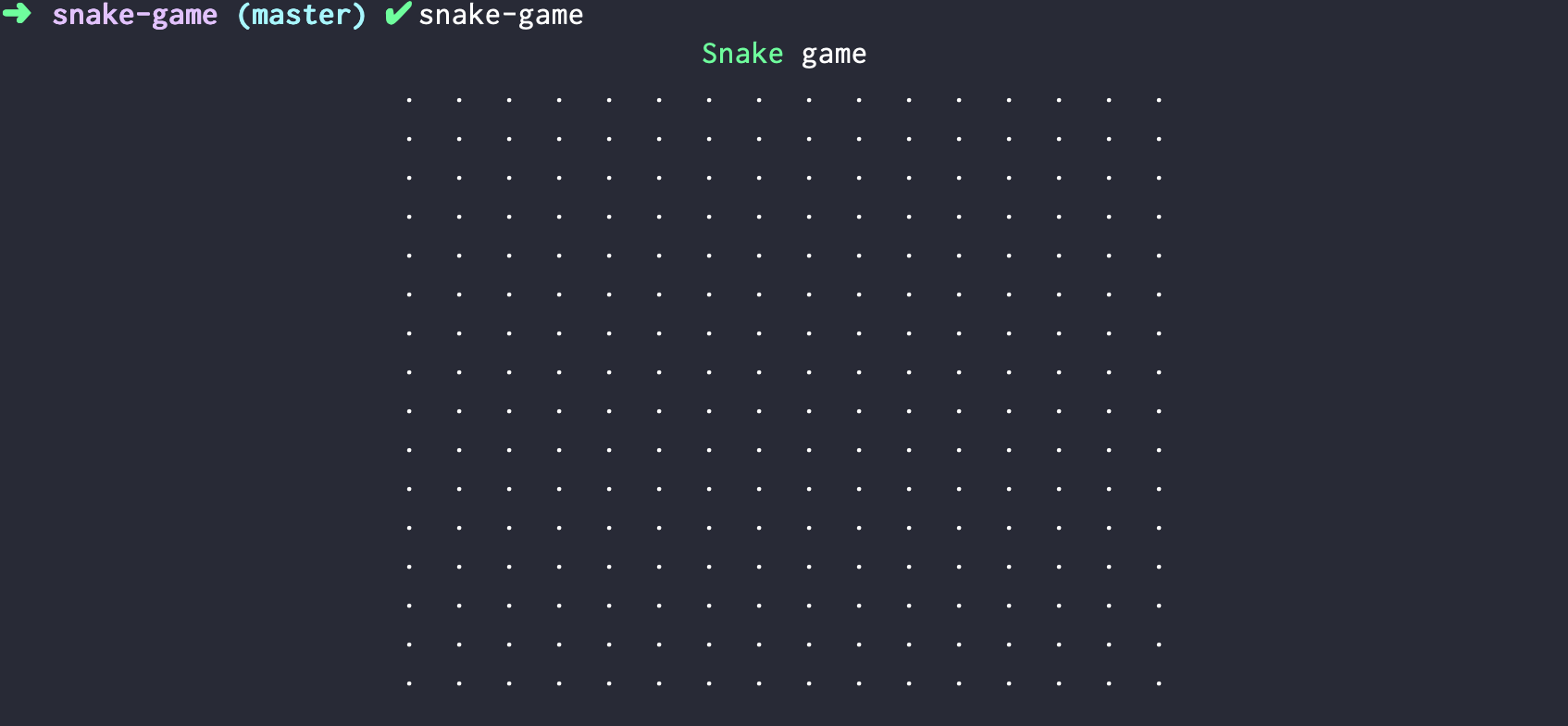
You can run the game to see what it renders:
snake-gameYou should see this:
Add Food And Snake
Time to add items to our game.
-
Define
foodItemto hold current position of food. Add this to global scope:let foodItem = { x: Math.floor(Math.random() * FIELD_SIZE), y: Math.floor(Math.random() * FIELD_SIZE), } -
Define
snakeSegmentsas auseStatehook inside ourAppcomponent to hold our snake position. It will be an array of snakes body segments.const [snakeSegments, setSnakeSegments] = useState([ { x: 8, y: 8 }, { x: 8, y: 7 }, { x: 8, y: 6 }, ]) -
Define
getItemfunction with following content:const getItem = (x, y, snakeSegments) => { if (foodItem.x === x && foodItem.y === y) { return <Color red></Color> } for (const segment of snakeSegments) { if (segment.x === x && segment.y === y) { return <Color green>■</Color> } } }
-
Now update the return value of our
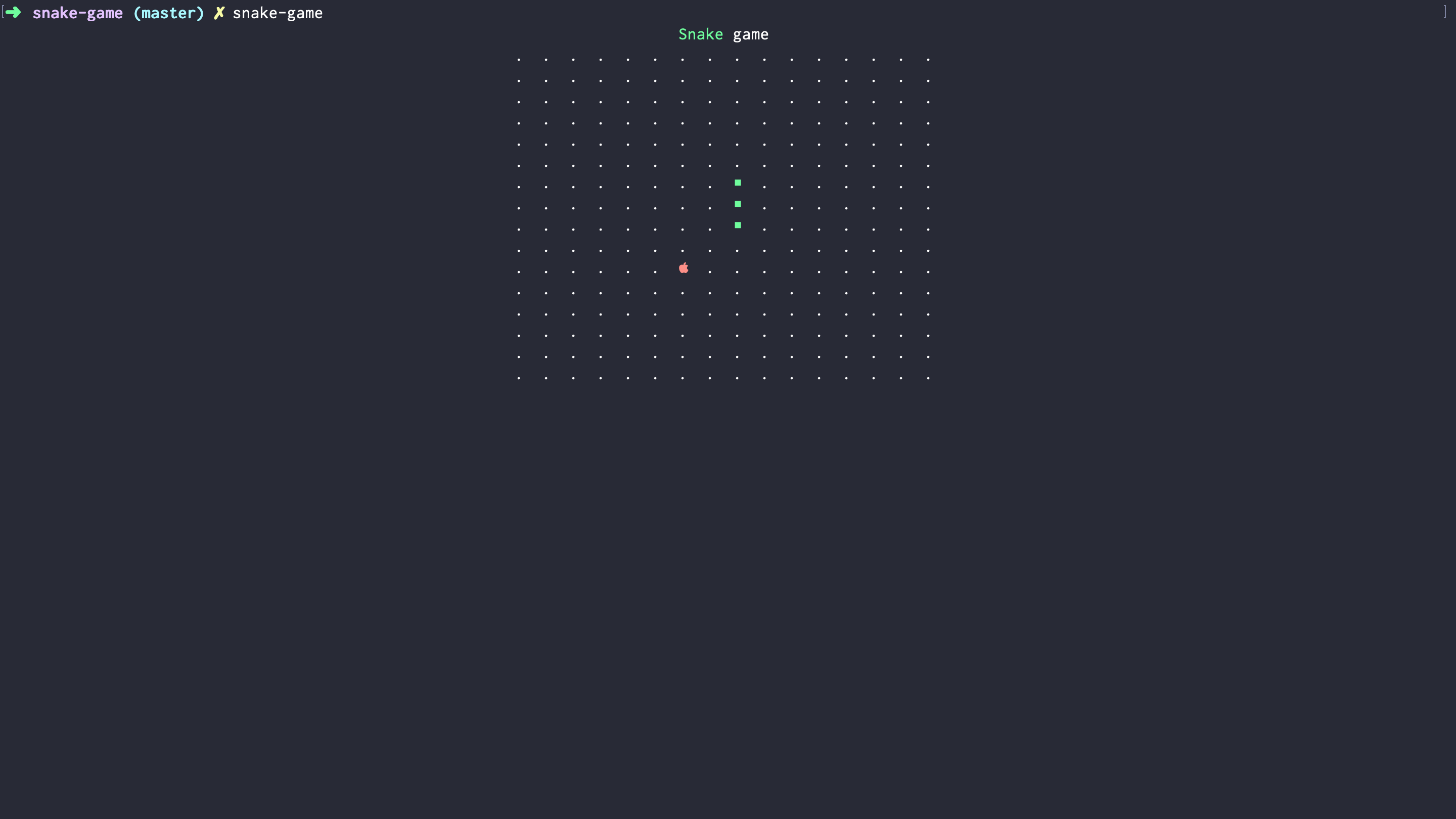
Appto usegetIteminstead of rendering dots.<Box flexDirection="column" alignItems="center"> <Text> <Color green>Snake</Color> game </Text> {intersectsWithItself ? ( <EndScreen size={FIELD_SIZE} /> ) : ( <Box flexDirection="column"> {FIELD_ROW.map(y => ( <Box key={y}> {FIELD_ROW.map(x => ( <Box key={x}> {getItem(x, y, snakeSegments) || "."} </Box> ))} </Box> ))} </Box> )} </Box>Now if there is food or snake segment in specific point - we render it instead of the dot.
-
After you run the game this time - you should see this:
Make Snake Move
Now we'll need to add a game timer that will update the status of our game every 50ms so we can move our snake.
Using timers in React is not that straightforward and there is an article by Dan Abramov about that. We'll use useInterval hook iplementation from it.
-
Create file
useInterval.jswith following content:"use strict" const { useEffect, useRef } = require("react") module.exports = function useInterval(callback, delay) { const savedCallback = useRef() useEffect(() => { savedCallback.current = callback }, [callback]) // Set up the interval. useEffect(() => { function tick() { savedCallback.current() } if (delay !== null) { let id = setInterval(tick, delay) return () => clearInterval(id) } }, [delay]) }
-
Create
DIRECIONconstant to hold directions our snake can go:const DIRECTION = { RIGHT: { x: 1, y: 0 }, LEFT: { x: -1, y: 0 }, TOP: { x: 0, y: -1 }, BOTTOM: { x: 0, y: 1 } }; -
Create new variable
directionusinguseStatehook inside of ourAppcomponent:const [direction, setDirection] = useState(DIRECTION.LEFT) -
Create new function, called
newSnakePositionfunction newSnakePosition(segments, direction) { const [head] = segments return segments.map(segment => ({ x: limitByField(segment.x + direction.x), y: limitByField(segment.y + direction.y), })) } -
newSnakePositionuseslimitByFieldfunction to handle off-board positions of our snake. Implement this function:const limitByField = x => { if (x >= FIELD_SIZE) { return 0 } if (x < 0) { return FIELD_SIZE - 1 } return x } -
Now we can use
setIntervalto callsetSnakeSegmentsusingnewSnakePositionin ourAppcomponent:useInterval(() => { setSnakeSegments(segments => newSnakePosition(segments, direction)) }, 50) -
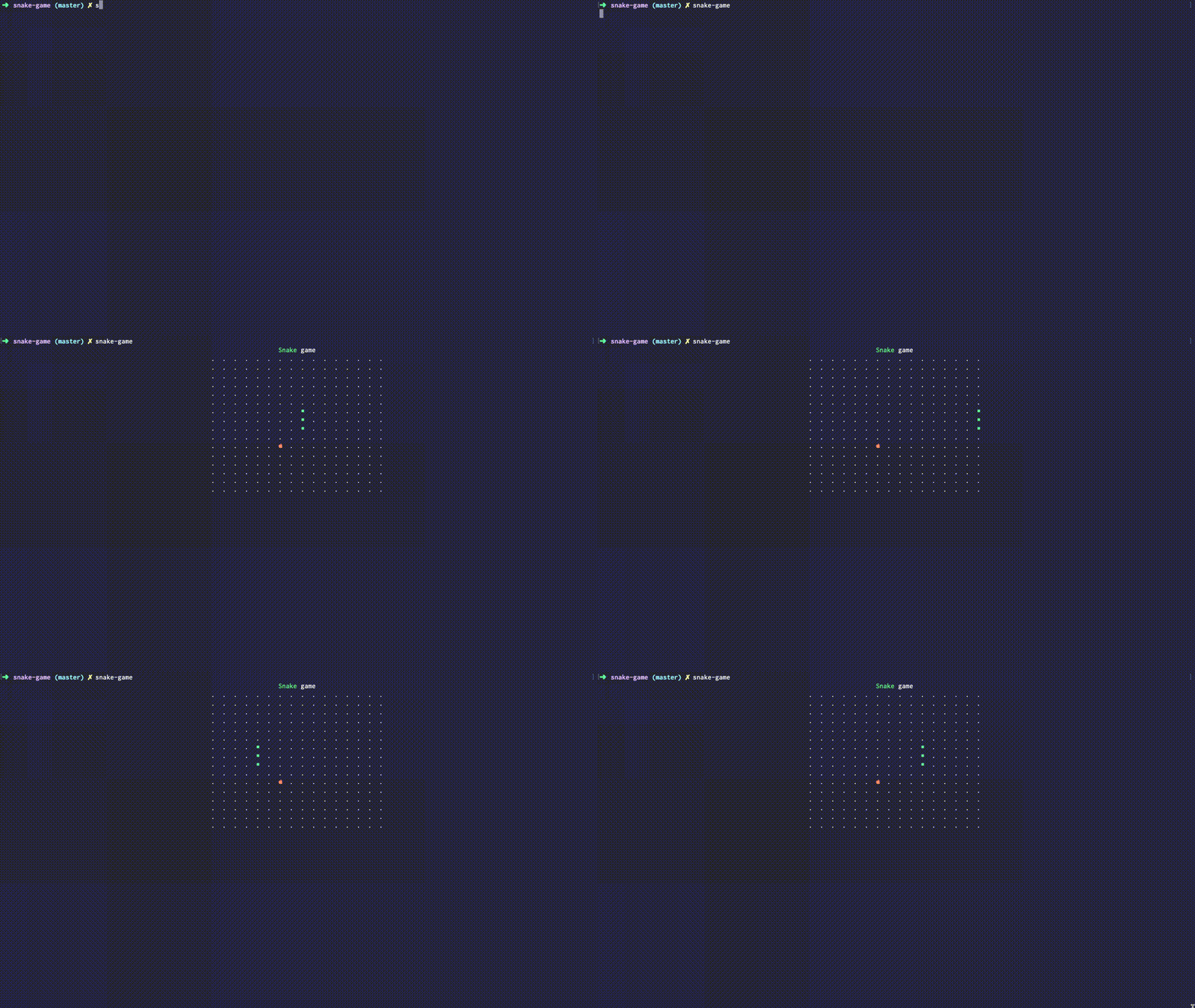
At this point your game should look like this:
Make Snake Move Properly
Now the snake is moving sideways. We need to update the newSnakePosition function to fix it.
-
Update the contents of
newSnakePositionfunction to match the following:function newSnakePosition(segments, direction) { const [head] = segments const newHead = { x: limitByField(head.x + direction.x), y: limitByField(head.y + direction.y), } return [newHead, ...segments.slice(0, -1)] }
Implement Eating And Growing
It's time to implement eating and growing. To do this we'll need to detect collision of snakes head with food.
-
Implement
collidesWithFoodfunction:function collidesWithFood(head, foodItem) { return foodItem.x === head.x && foodItem.y === head.y }Here we check if
foodItemandheadof the snake have same position. -
Now use it inside of the
newSnakePositionfunction:function newSnakePosition(segments, direction) { const [head] = segments const newHead = { x: limitByField(head.x + direction.x), y: limitByField(head.y + direction.y), } if (collidesWithFood(newHead, foodItem)) { foodItem = { x: Math.floor(Math.random() * FIELD_SIZE), y: Math.floor(Math.random() * FIELD_SIZE), } return [newHead, ...segments] } else { return [newHead, ...segments.slice(0, -1)] } }Here we always return
newHeadposition and then if we have collided with food - we teleport food to a new position.
Add End Of Game
At this point the game should be playable. But it's impossible to loose. Let's fix this.
-
Add this code before you use
useIntervalinsideAppcomponent:const [head, ...tail] = snakeSegments const intersectsWithItself = tail.some( segment => segment.x === head.x && segment.y === head.y ) -
We need to stop the game when snake bites itself. Add this ternary operator inside of
useIntervalcall.useInterval( () => { setSnakeSegments(segments => newSnakePosition(segments, direction)) }, intersectsWithItself ? null : 50 )It will disable interval by setting timeout to
nullwhen snake intersects with itself. -
Now add the end screen. Create new file
EndScreen.jswith following contents:"use strict" const React = require("react") const { Color, Box } = require("ink") module.exports = ({ size }) => ( <Box flexDirection="column" height={size} width={size} alignItems="center" justifyContent="center" > <Color red>You died</Color> </Box> ) -
Use
importJsxto importEndScreeninui.js:const EndScreen = importJsx("./EndScreen") -
Update return value of the
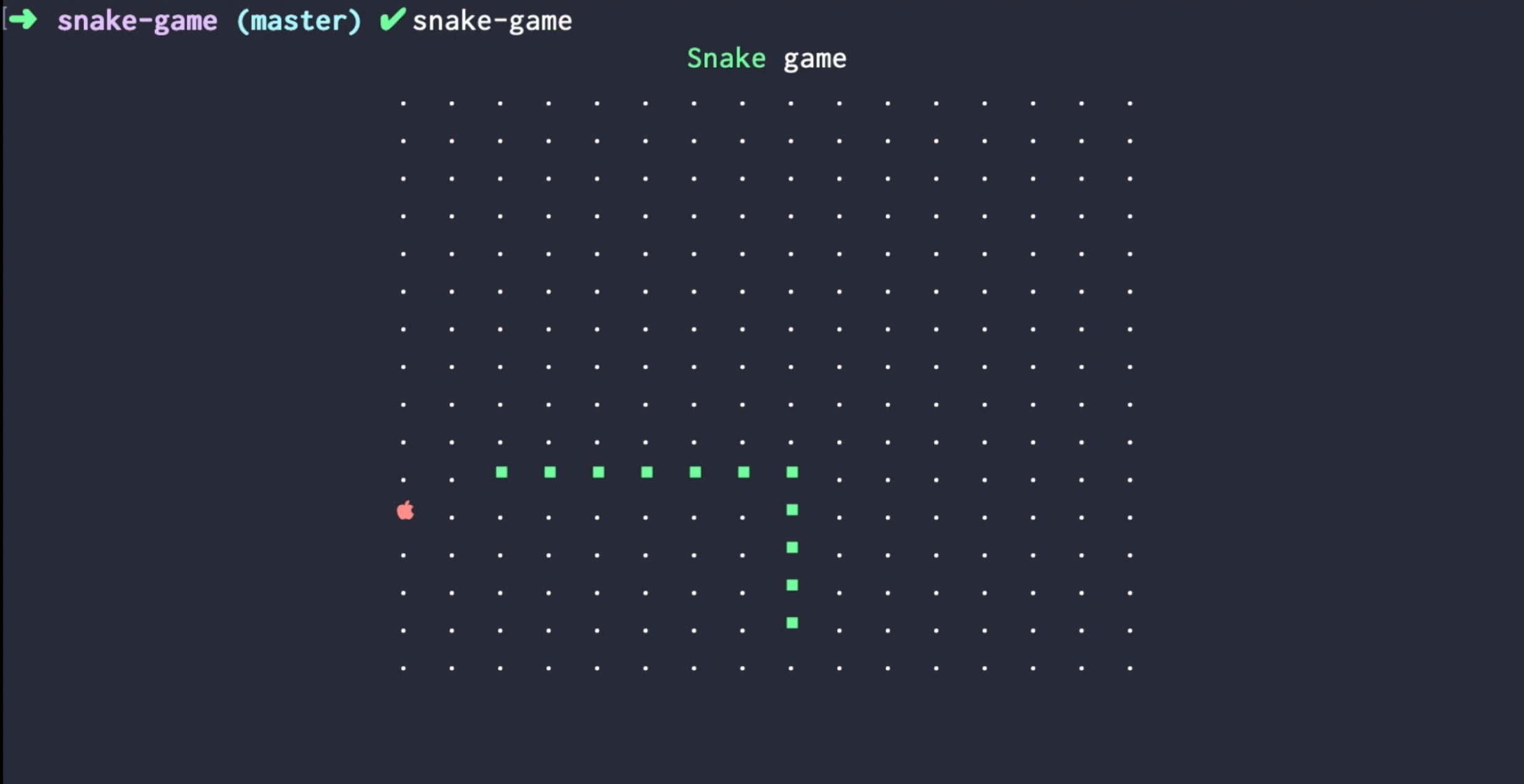
Appcomponent to match this:<Box flexDirection="column" alignItems="center"> <Text> <Color green>Snake</Color> game </Text> {intersectsWithItself ? ( <EndScreen size={FIELD_SIZE} /> ) : ( <Box flexDirection="column"> {FIELD_ROW.map(y => ( <Box key={y}> {FIELD_ROW.map(x => ( <Box key={x}> {getItem(x, y, snakeSegments) || "."} </Box> ))} </Box> ))} </Box> )} </Box>Here you go - CLI React-based Snake game!
Conclusion
Even though Ink is not intended to make games - as you can see even this is possible.
I like how easy it is now to create cli apps of any level of complexity, yay!
Here is a repo with all the code. Ping me in telegram if you have any questions.